

Documentation Index
Fetch the complete documentation index at: https://domoinc-arun-raj-connectors-domo-479583-raisers-edge-connec.mintlify.app/llms.txt
Use this file to discover all available pages before exploring further.
Intro
Salesforce is acloud-based Customer Relationship Management (CRM) platform. Use the Domo Salesforce Rest Writeback connector to export data from a Domo DataSet to your Salesforce account through the REST API. You can connect to your Salesforce Rest Writeback account in the Data Center. This topic discusses the fields and menus specific to the Salesforce Rest Writeback connector user interface. To add DataSets, set update schedules, and edit DataSet information, see Adding a DataSet Using a Connector.Prerequisites
To configure the Salesforce Rest Writeback connector and create a Domo DataSet, you must provide the following:- Domo Client ID
- Domo Client Secret
- Salesforce Environment selection
Generating Domo Client ID and Client Secret
The Domo Client ID and Client Secret can be generated within the Domo instance. To generate the Domo Client ID and Secret, follow the steps below:-
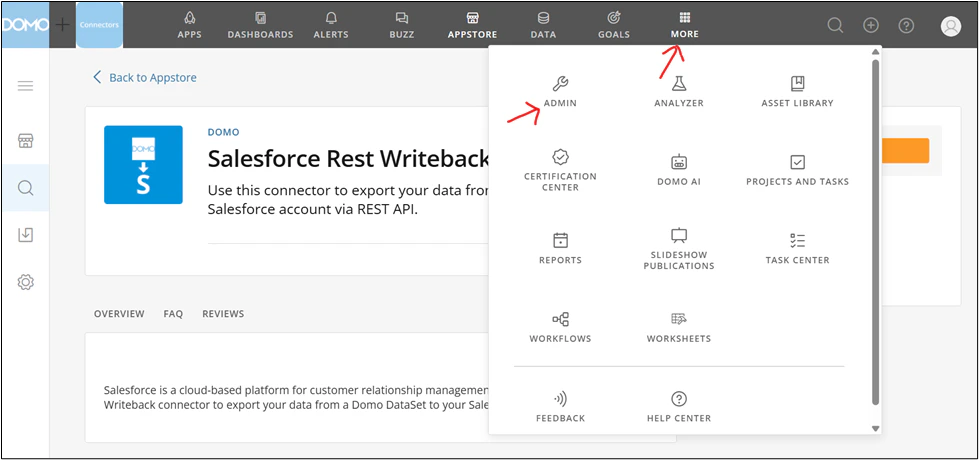
From the navigation header, select More >
 Admin.
-
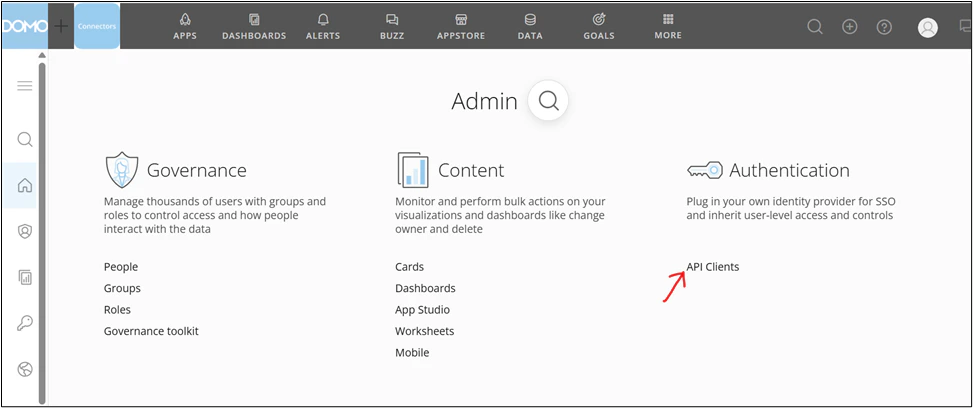
In the Authentication section of the Admin Settings, click the API Clients page.
-
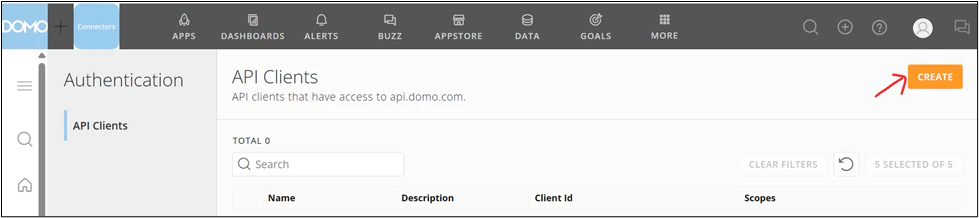
In the top-right corner, click Create.
The Create API Client window opens.
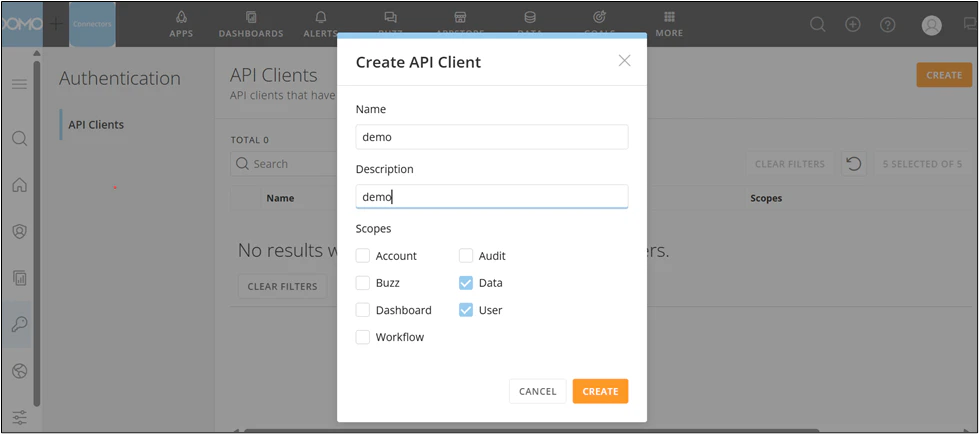
- Enter the application Name and Description.
-
Under Scopes, select the Data and User checkbox, and click Create.
- Copy and save the generated Client ID and Client Secret.
Connecting to Your Salesforce Rest Writeback Account
This section enumerates the options in the Credentials and Details panes on the Salesforce Rest WritebackConnector page. The components of the other panes on this page, Scheduling and Name & Describe Your DataSet, are universal across most connector types and are discussed in great detail in Adding a DataSet Using a Connector.Credentials Pane
This pane contains fields for entering credentials to connect to your Salesforce Rest Writeback account. The following table describes what is needed for each field:| Field | Description |
|---|---|
| Salesforce Environment | Select the Salesforce environment you want to authenticate against (i.e., login.salesforce.com or test.salesforce.com). Select the Salesforce Environment against which you want to authenticate. (Options include: login.salesforce.com or test.salesforce.com) |
| Domo Client ID | Enter the Domo Client ID. |
| Domo Client Secret | Enter the Domo Client Secret. |
Details Pane
This pane contains four sections for selecting and configuring the data you want to send to Salesforce.Writeback Type
In this section, you can choose whether you want to insert, update, or insert and update the data from a Domo DataSet into an existing Salesforce table. Your Salesforce objects will be populated automatically in the Salesforce Setupsection of the Details pane, and you can choose the one you want to push data to.Domo DataSet
Enter the DataSet ID (GUID) for the DataSet you want to copy to Salesforce. You can find the ID by opening the details view for the DataSet in the Data Center and looking at the portion of the URL following datasources/. For example, in the URL https://mycompany.domo.com/datasources/845305d8-da3d-4107-a9d6-13ef3f86d4a4/details/overview, the DataSet ID is 845305d8-da3d-4107-a9d6-13ef3f86d4a4.Note: - After inserting the record, the Salesforce internal or external IDs are stored as GUID in the dataset
- The Salesforce Writeback Connector looks for a _BATCH_ID_ column. If this column is present in the input DataSet, the Connector will keep track of the highest _BATCH_ID_ in the source DataSet to keep track of the data already written to Salesforce. For the next run, the Connector will only write rows with a _BATCH_ID_ higher than the one recorded on previous runs. This is to avoid writing duplicate data to Salesforce. If the _BATCH_ID_ column is not present in the source DataSet, all the data will be written to Salesforce every time the Connector runs.