

Documentation Index
Fetch the complete documentation index at: https://domoinc-arun-raj-connectors-domo-479583-raisers-edge-connec.mintlify.app/llms.txt
Use this file to discover all available pages before exploring further.
Note: This feature is in public open beta.
DOMO AI is available only to those on a consumption agreement. Those not on a consumption agreement can request a trial by reaching out to their Customer Success Manager (CSM).
Intro
The Model Context Protocol (MCP) is an open standard that allows AI assistants to securely interact with external platforms and data sources. Domo’s MCP Server is a hosted service that gives AI tools — such as Claude, Cursor, VS Code, and ChatGPT — secure access to your Domo instance. After you’re connected, you can use your AI tool to:- Query data in your Domo DataSets
- Query documents stored in Domo
- Search across your Domo instance
- Summarize cards and pages (coming soon)

Required Grants
The following grants allow you to use the AI Library feature.- Use AI Services - Access to features and Apps built using the AI Services Layer.
- Use AI Chat - Access to the Domo AI Assistant.
Prerequisites
Before connecting, ensure you have the following:- Node.js version 21 or higher installed. Use nvm to manage your Node.js version.
- A Domo Access Token with appropriate permissions. You can provision one at Admin > Authentication > Access Tokens, or request one from your MajorDomo. See Manage Access Tokens for instructions.
- A supported AI code editor (Claude Desktop, Claude Code, VS Code, Cursor, or another MCP-compatible client).
Connect Claude Desktop
Claude Desktop does not natively support remote MCP servers, so you connect usingmcp-remote — an NPM tool that bridges desktop AI clients to remote MCP servers.
Step 1: Provision an Access Token
In your Domo instance, go to Admin > Authentication > Access Tokens and generate a token. See Manage Access Tokens for instructions.
Step 2: Install mcp-remote
Open a terminal and run:Step 3: Install Claude Desktop
Download and install Claude Desktop.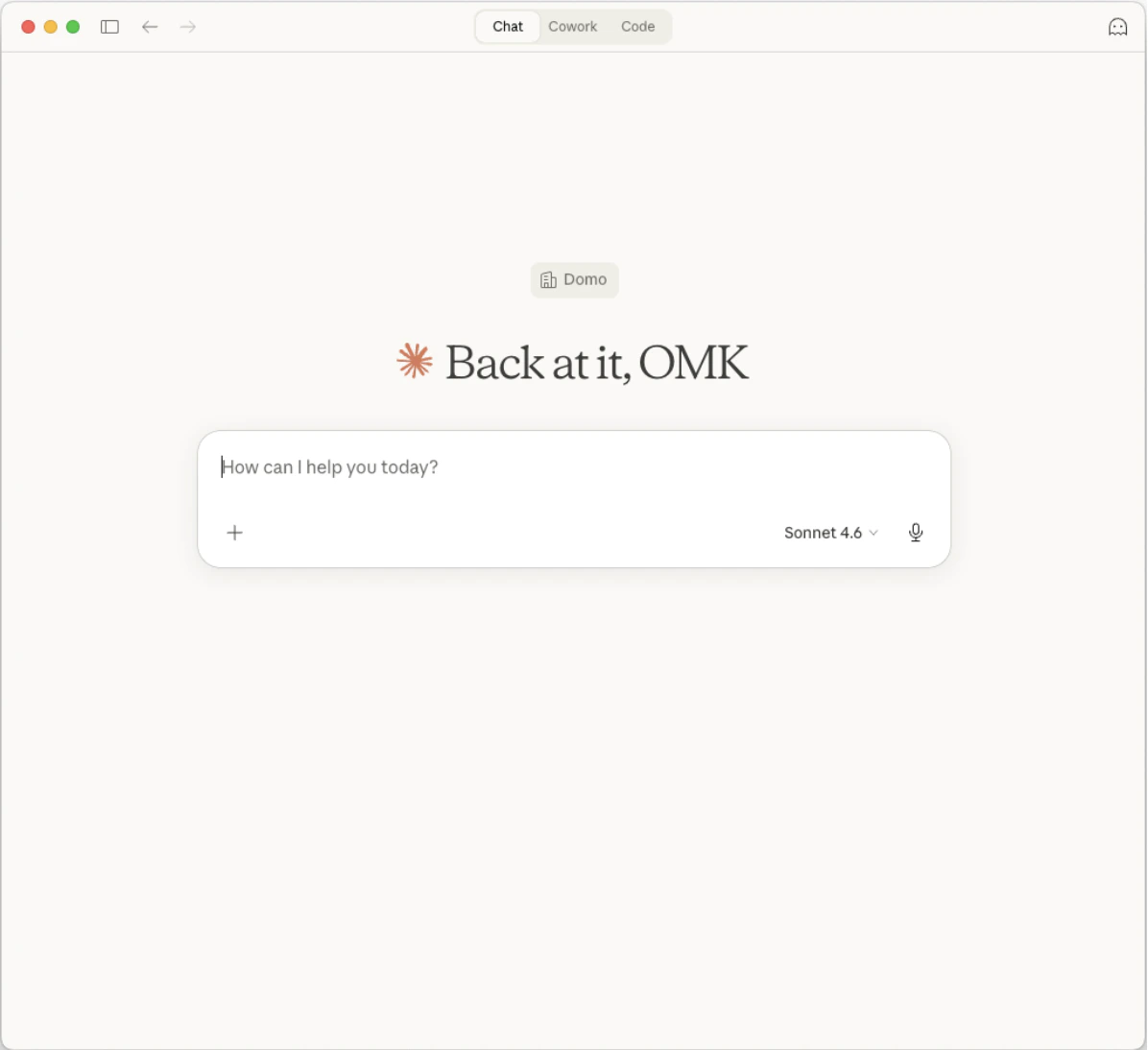
Step 4: Edit the Claude Desktop configuration
In Claude Desktop, go to Settings > Developer and select Edit Config.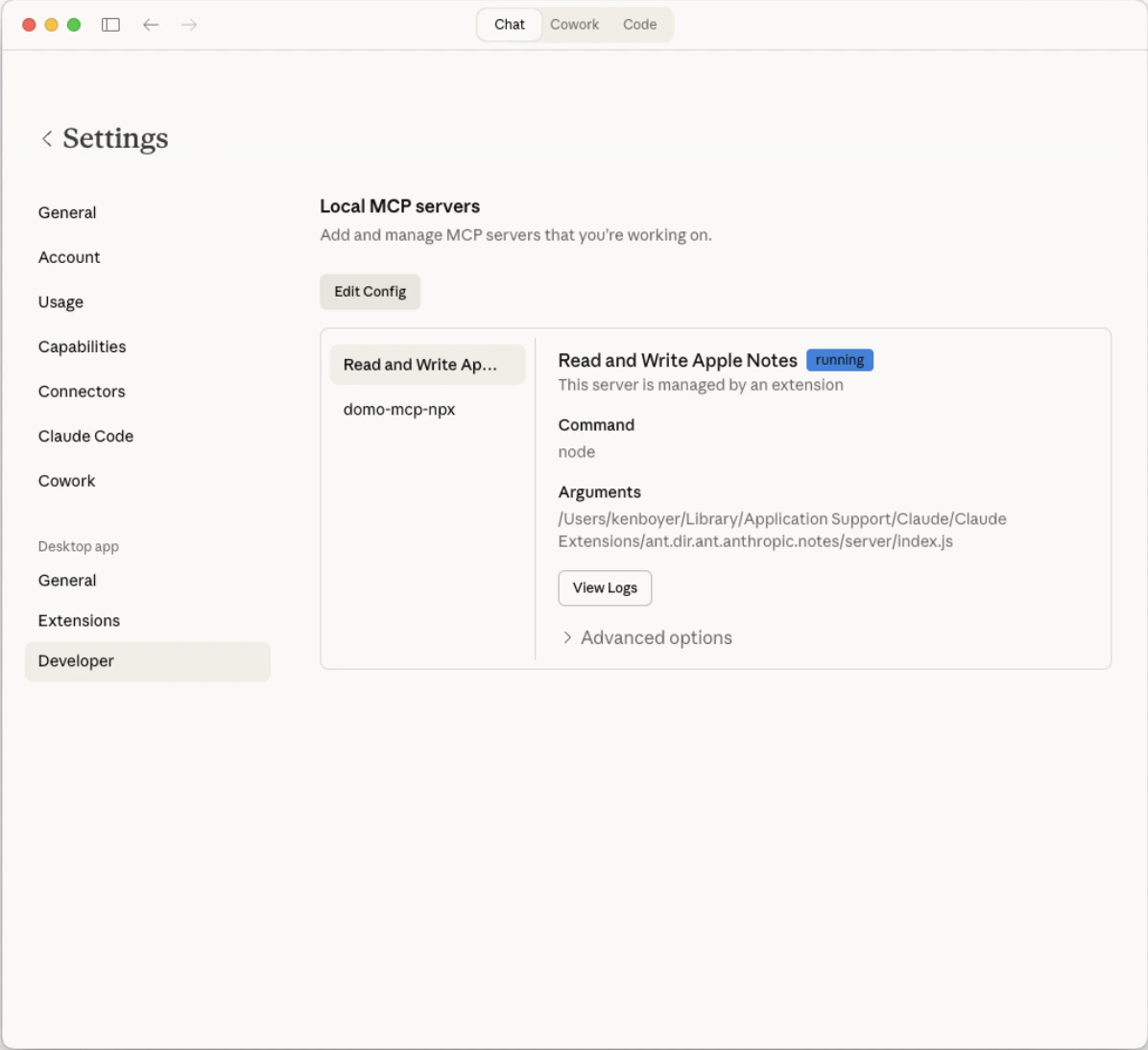

Step 5: Add the Domo MCP Server configuration
Paste the following into the configuration file, replacing<DOMO_DOMAIN> with your Domo instance domain and <DOMO_ACCESS_TOKEN> with your Access Token:
Step 6: Restart Claude Desktop
Quit and restart Claude Desktop for the configuration to take effect.
Step 7: Verify the connection
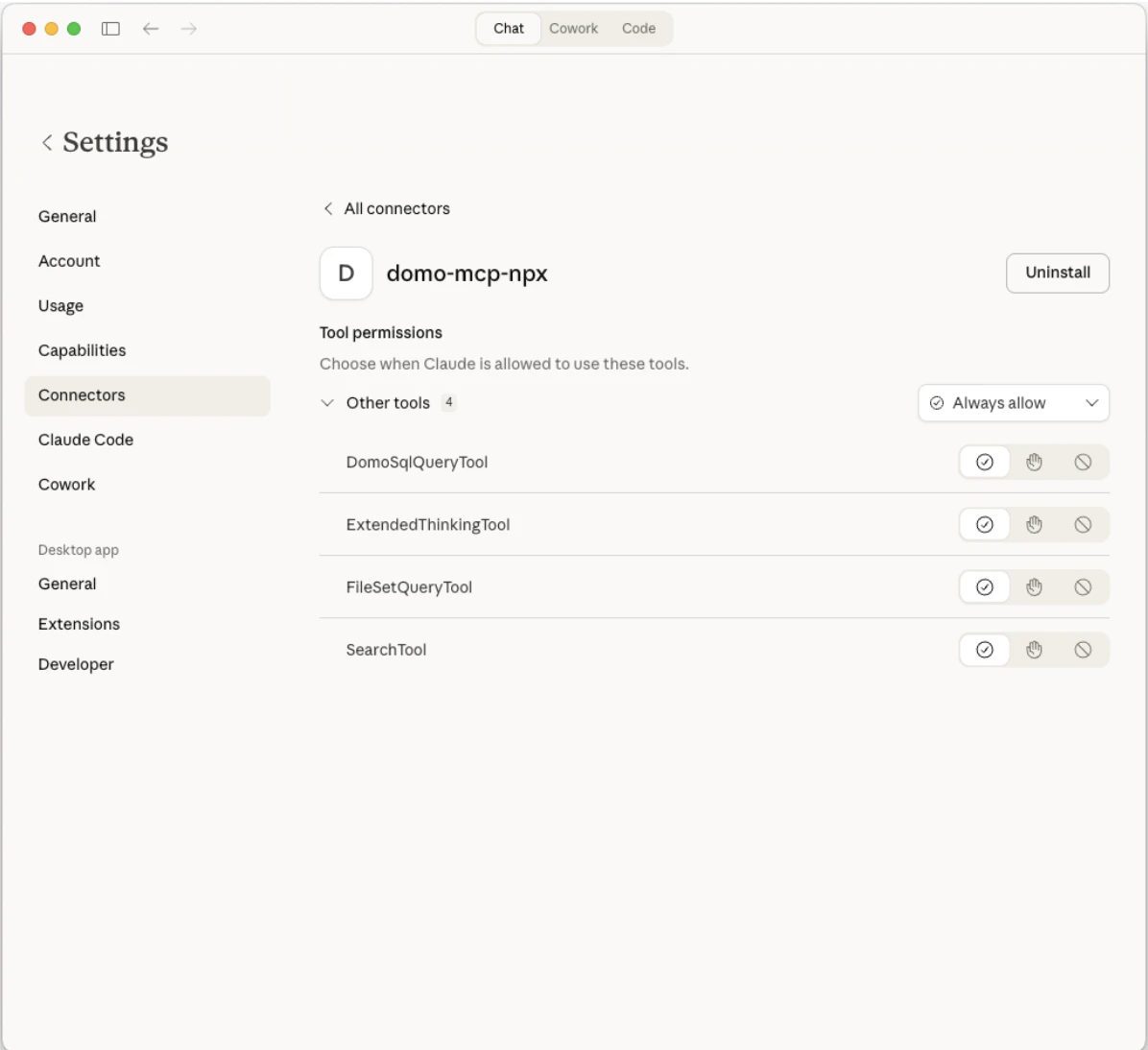
Go to Settings > Connectors and confirm the Domo MCP server is listed and connected.
DomoSqlQueryToolExtendedThinkingToolFileSetQueryToolSearchTool
Connect Claude Code
In Claude Code, run the following command from the root of your project. Replace<DOMO_DOMAIN> with your Domo instance domain and <DOMO_ACCESS_TOKEN> with your Access Token:
.mcp file in the root of your project:
Connect VS Code
- Open the Command Palette with Cmd+Shift+P (Mac) or Ctrl+Shift+P (Windows/Linux).
-
Choose your configuration scope:
- For a global (user) configuration (recommended) available across all workspaces, search for and select MCP: Open User Configuration.
- For a workspace-specific configuration (not recommended for security, as it may expose your credentials), search for and select MCP: Open Workspace Folder MCP Configuration. This creates or opens
.vscode/mcp.json. - For a WSL configuration, search for and select MCP: Open Remote User MCP Configuration. This creates or opens
~/.vscode-server/data/User/mcp.json.
-
Add the following entry for
domo-mcpto theserversobject anddomo-access-tokento theinputsarray in the configuration file. Replace<DOMO_DOMAIN>with your Domo instance domain. You’ll be prompted to enter your Access Token when you start the server:
Troubleshoot
Depending on your environment, you may need to make additional changes to the Claude Desktop configuration. Mac Ifnpx cannot be found, add an env property to the domo-mcp-npx server entry in your configuration, replacing <USER_PATH> with your home directory path:
npx cannot be found, replace the "command" value in your configuration with the full path to the npx executable, for example:
FAQ
Which AI tools are compatible with the Domo MCP Server?
Which AI tools are compatible with the Domo MCP Server?
The Domo MCP Server works with any MCP-compatible AI client, including Claude
Desktop, Claude Code, VS Code, Cursor, and ChatGPT.
What can I do after I'm connected?
What can I do after I'm connected?
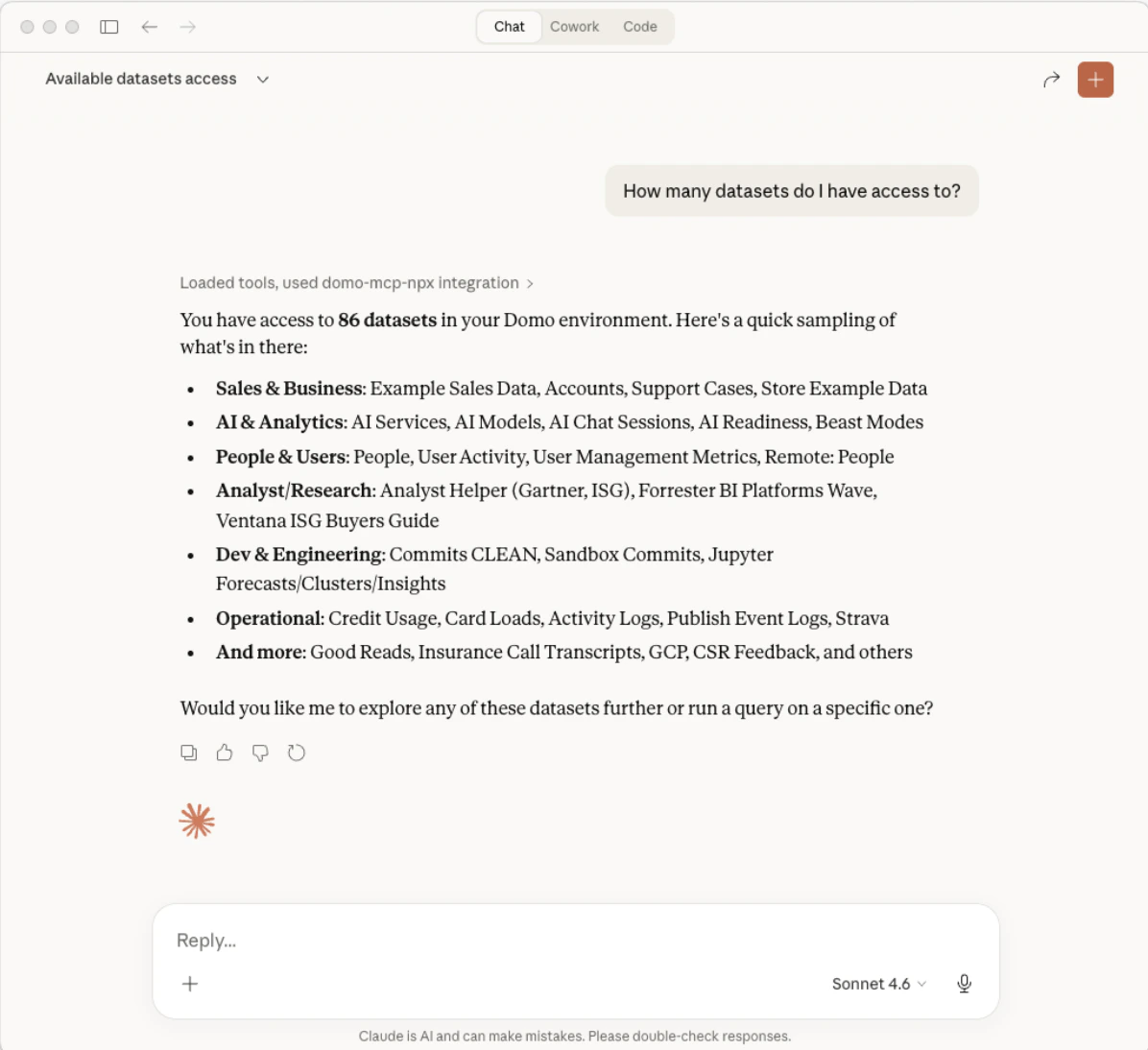
After you’re connected, you can query your Domo DataSets, query documents
stored in Domo, and search across your Domo instance. Card and page
summarization are coming soon.
I connected successfully, but I get an error when I query data.
I connected successfully, but I get an error when I query data.
Your user will need the following grants enabled: Use AI Chat & Use AI Services.