Documentation Index
Fetch the complete documentation index at: https://domoinc-arun-raj-connectors-domo-479583-raisers-edge-connec.mintlify.app/llms.txt
Use this file to discover all available pages before exploring further.
Intro
This article explains how to connect Domo’s Cloud Integrations to Azure SQL, allowing you to query and visualize Azure SQL data directly in Domo without moving or duplicating data.Prerequisites
You must have an account with access to Azure SQL to move forward.Create or Manage Your Azure SQL Integrations
To access the integration management interface, follow these steps:- Navigate to Data Warehouse.
- Select Connect Data.
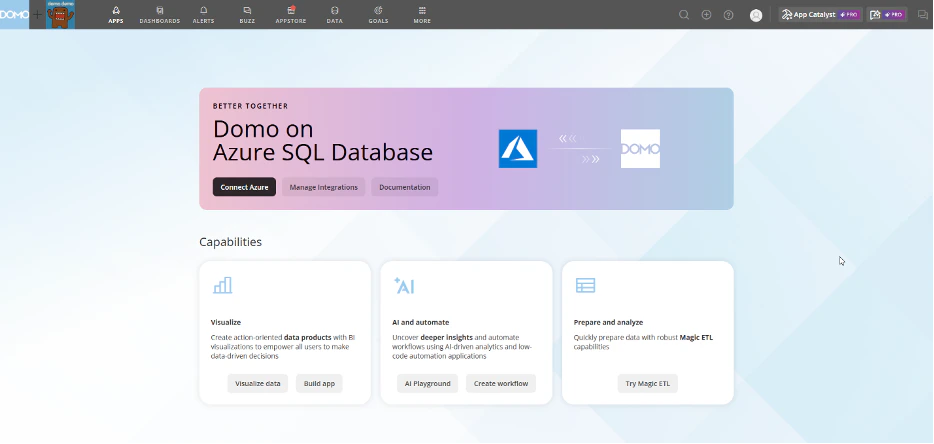
- From the list of Cloud Integrations, choose Azure SQL.
The Domo on Azure SQL page appears. - Select Connect Azure SQL to start creating a new integration (see the integration setup instructions).
- Select Manage Integrations to modify existing integrations.
A list of available integrations displays. - Select the wrench icon next to an integration to view available options.
The options shown depend on your access level.
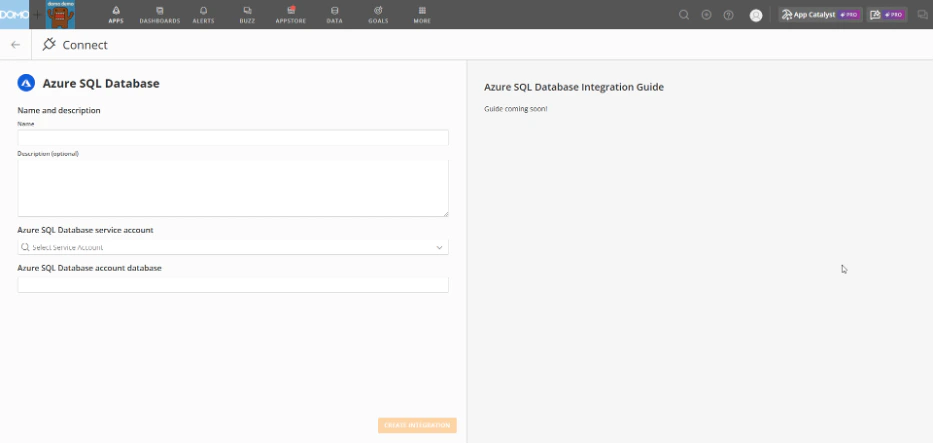
Create an Azure SQL Integration in Domo
Every Azure SQL integration in Domo requires an authenticated service account. Once created, a single service account can be reused across multiple integrations. Follow these steps to create your Azure SQL integration in Domo:- Provide a name for the integration. This is simply a label to help you identify the integration within Domo. It does not need to match any names in Azure SQL and can be changed later if needed.
- Azure SQL instance – Exists independently of Domo.
- Azure SQL service account – Defined in Domo and connects to the Azure SQL instance.
- Azure SQL integration – Uses the service account and adds settings such as connected tables and caching behavior.
Note: Multiple service accounts can connect to the same Azure SQL instance. Multiple integrations can share a single service account.
- Initially, only the owner of the service account has access.
- The owner can share access with individuals or groups.
- If multiple integrations use the same service account, they inherit the same user privileges.
- Changes to privileges affect all integrations tied to that account.
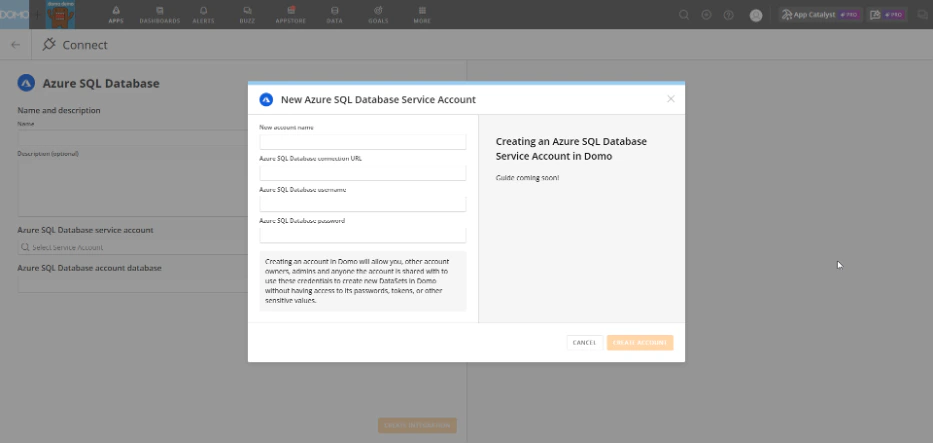
Create an Azure SQL Service Account in Domo
Every Azure SQL integration in Domo relies on an authenticated Azure SQL service account. Once created, this account can be reused across multiple Azure SQL integrations. Domo provides a dedicated Accounts Page where you can create and manage service accounts for various external services, including Azure SQL. After creation, your Azure SQL service account will appear on this page. Follow these steps to create an Azure SQL service account in Domo:- Choose a name to identify this Azure SQL service account within Domo.
-
- The name can be changed later.
- Use clear, distinctive names to avoid confusion between Azure SQL accounts and integrations.
- You can create multiple service accounts even if they all point to the same Azure SQL instance.
- Enter the name of your server or its IP address.
- Enter your Azure SQL Username.
- Enter your Azure SQL Password.